Create your Itzi key
Open the Itzi API dashboard and sign in. Under API keys, enter a name for this app and click Create. Copy the secret immediately: it is shown only once. Keep a separate key for each app and paste it only into its API key field.
Choose a model your account can access. Requests use your Itzi balance or subscription according to the key settings. The example keys in these screenshots do not work.
Open API dashboardConnection details
Proxy URL
https://itzi.app/v1/chat/completionsThis field expects the full generation URL, including /chat/completions.
- API key
- Your full Itzi key, starting with
itzi_sk_. - Model
- An exact model ID from your API dashboard or
/v1/models.
Set up the connection
Open the chat settings
Sign in to JanitorAI and open a chat that allows external proxies. Click the three-line menu at the top right of the chat, then choose Settings. The settings panel opens on the right.
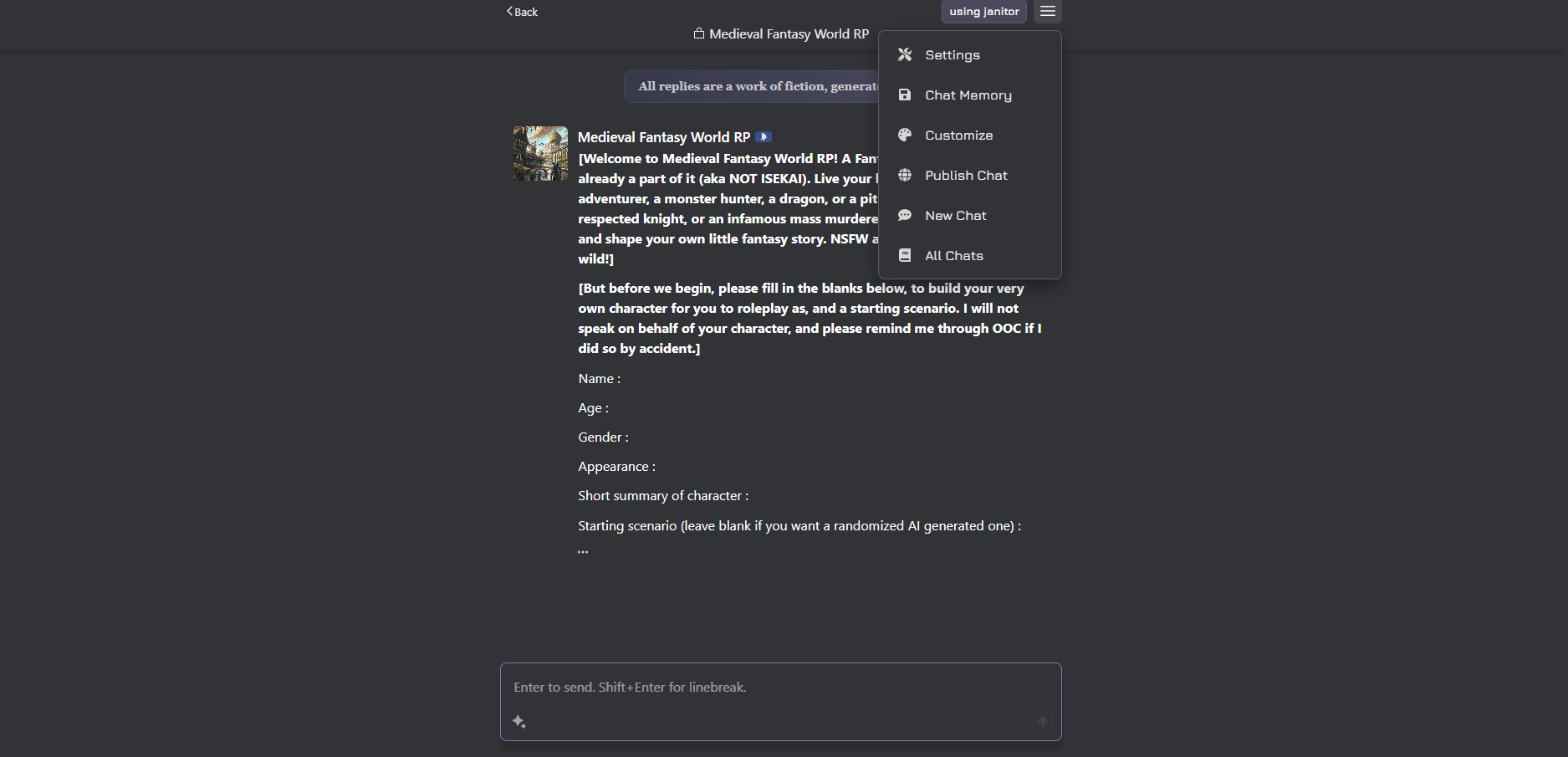
Open the chat menu and choose Settings. Open the image to view it at full size. Choose the proxy provider
In the Settings tab, set Provider to Proxy. Under Proxy configurations, click + New to open the New Configuration form. If the character does not allow proxies, use one that does.
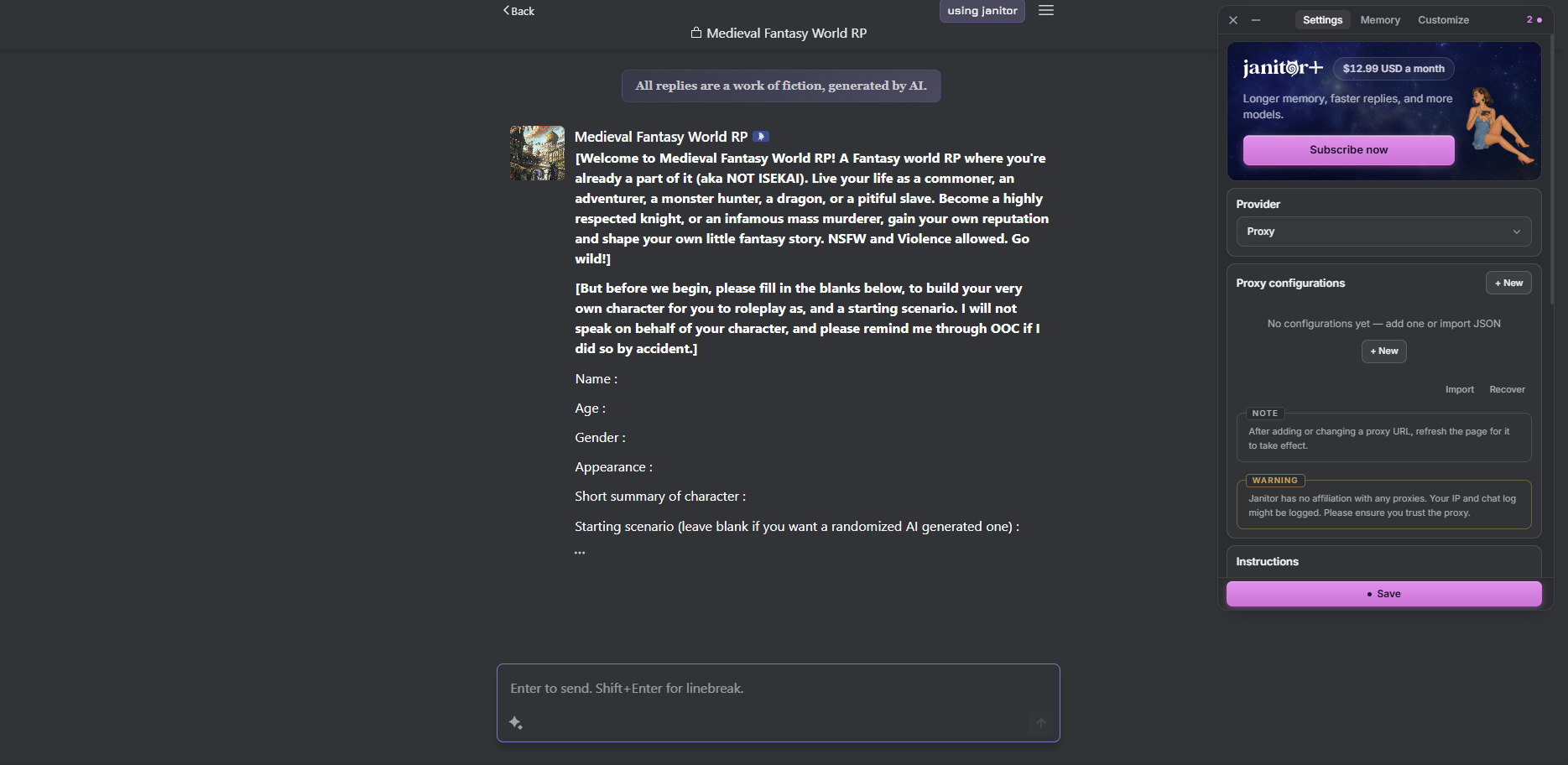
Set Provider to Proxy, then use + New to add Itzi. Open the image to view it at full size. Enter the full generation URL
Set Name to Itzi. Paste the full URL from Connection details into Proxy URL. It already includes /v1/chat/completions, so do not append the path again. The screenshot shows an empty form; replace the placeholder URL with the Itzi URL.
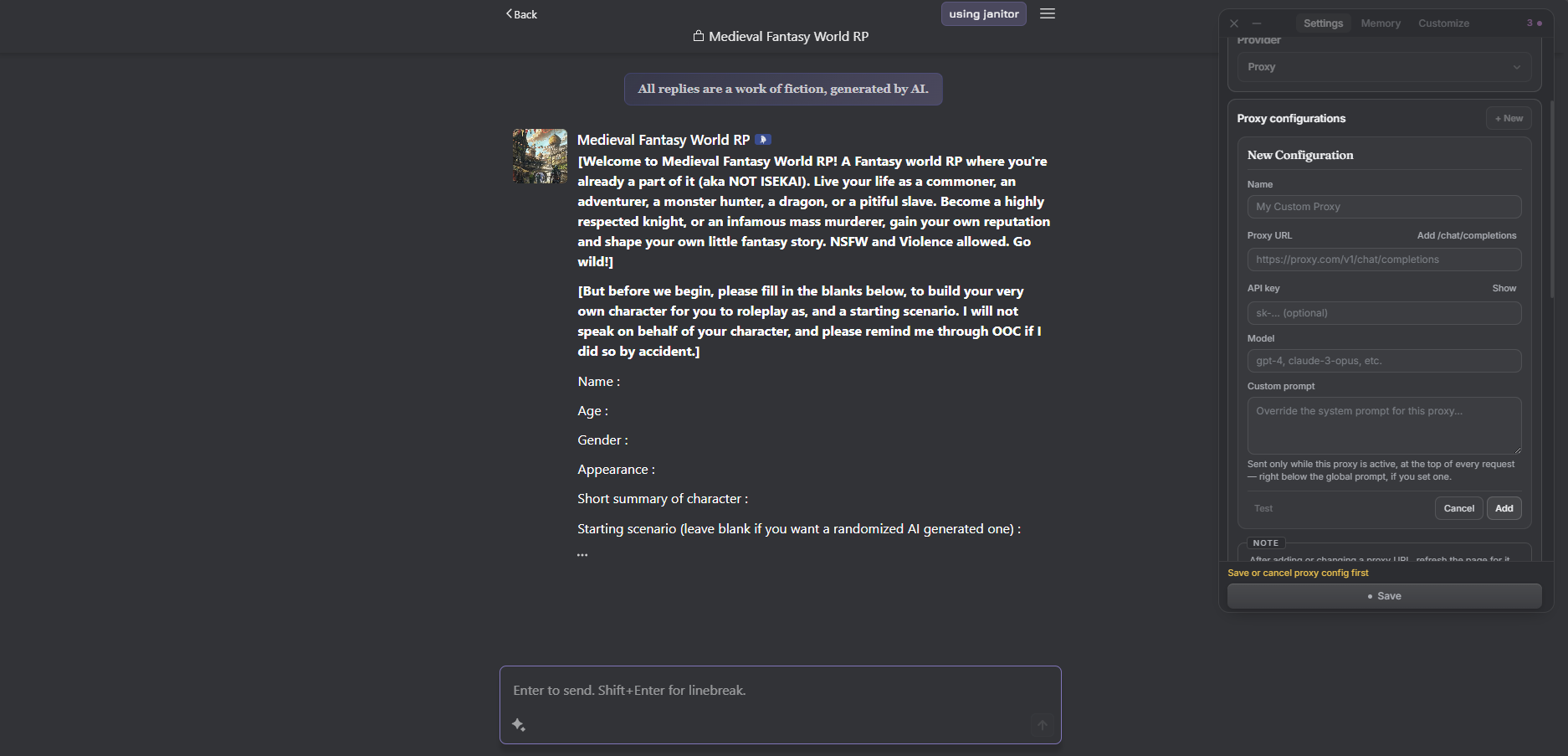
The fields are empty here. Enter your Itzi details, click Add, then Save. Open the image to view it at full size. Add the key and model
Paste your full Itzi key into API key. Itzi requires a key even though the field is marked optional. Set Model to an exact model ID from the Itzi API dashboard, not its display name. Leave Custom prompt empty for the first test.
Add, save and refresh
Click Add in the New Configuration form, select Itzi if needed, then click Save at the bottom of the Settings panel. Refresh the page after adding or changing the proxy URL, as JanitorAI requests. Send a short message to test the connection; this uses your Itzi balance or subscription allowance.
If something does not work
Save is disabled while the form is open
Finish the new configuration with Add before using the main Save button. If JanitorAI says Save or cancel proxy config first, the New Configuration form is still open.
Check the exact endpoint field
The Proxy URL described here uses the complete generation URL. If your version instead explicitly asks for a Base URL and says it appends /chat/completions, use https://itzi.app/v1 there.
A blank reply needs a smaller test
Try a short prompt with default generation settings and a model available to your key. If it still fails, check Itzi Status and the same model in Itzi Chat before retrying the proxy.
Invalid key or 401
Copy the entire Itzi key without spaces. If it was revoked or lost, create a replacement in the API dashboard. An upstream provider key cannot replace an Itzi key.
Payment or access error
Check your balance, subscription allowance and the API key's subscription settings. A model shown in the public catalog may require access your key does not have.
Model not found or an empty model list
Refresh the model list using your key. Copy the exact ID from the API dashboard, then confirm the endpoint and key were saved before model discovery.
Too many requests or 429
Wait before retrying and reduce parallel requests. Chat messages and background agents share your limits. Check the error message for a rate, concurrency or subscription limit.
Long chats fail or responses are empty
Test a short conversation first. Lower the client's context and output limits, including character, lorebook and system prompts in that budget. Check Itzi Status if a short request also fails.